 Contents
Contents
- Quick Start Guide
- Step 1: Purchase the EZ Lynk Auto Agent 3 and Provide Your VIN Number
- Step 2: Flash Your Truck Before Installing Hardware Components
- Step 3: Hook Up a Battery Charger and Set It to 10A
- Step 4: Download the EZ Lynk Auto Agent App
- Step 5: Plug the EZ Lynk Auto Agent Into Your OBD-II Port
- Step 6: Connect to the Auto Agent Through Wi-Fi
- Step 7: Go to ECU Profiles and Flash Your Tuning
- Ford, GM, and Dodge Flashing Notes
- Common EZ Lynk Auto Agent 3 Installation Mistakes to Avoid
- Conclusion
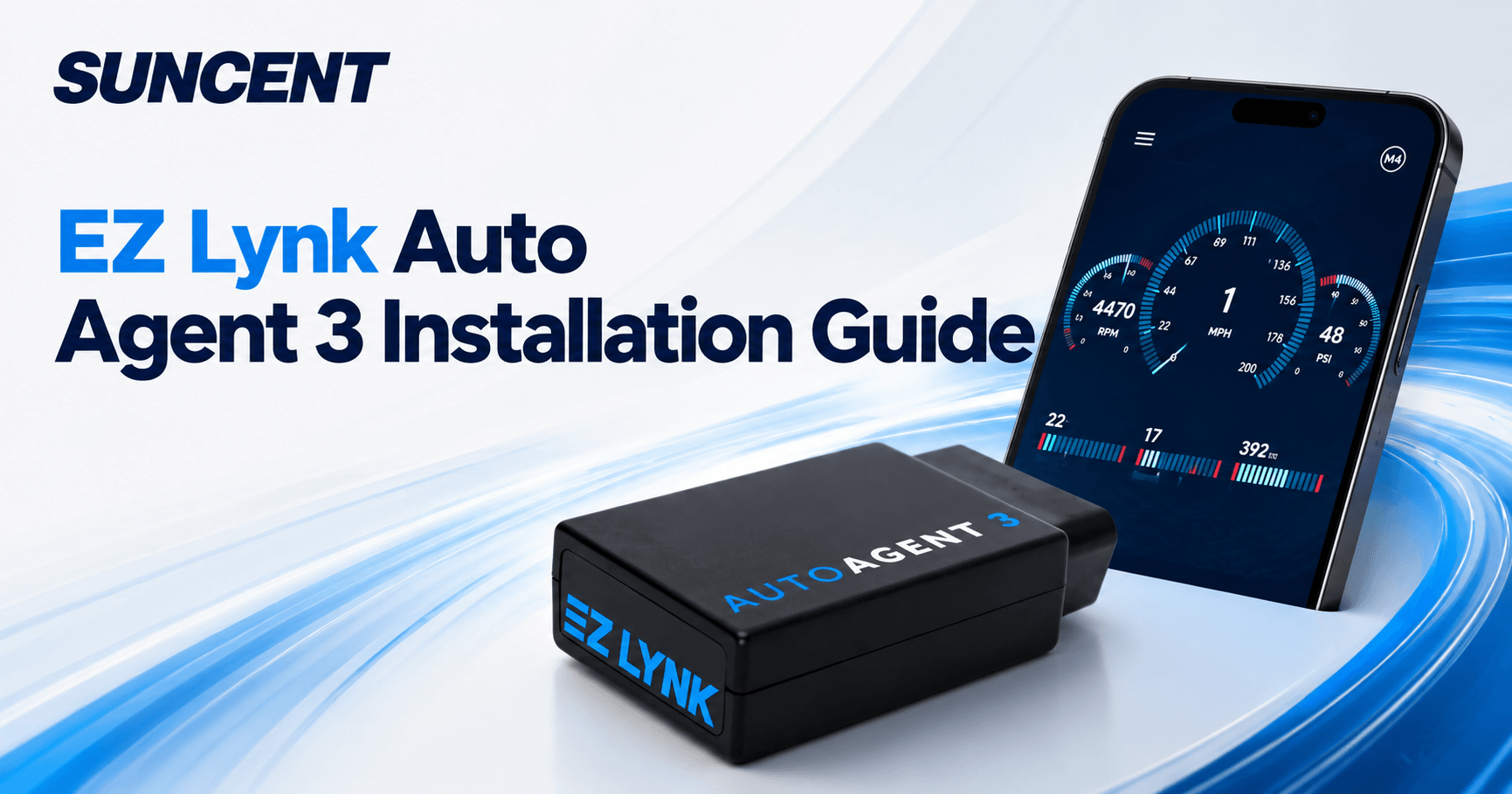
The EZ Lynk Auto Agent 3 — sometimes also listed as the EZ Lynk Auto Agent 3.0 — is a cloud-connected diagnostic and tuning device designed to connect your truck, mobile device, and technician through the EZ Lynk platform.
If you are setting up your Auto Agent for the first time, following the correct installation process is extremely important. A proper setup helps reduce flashing issues, prevents unnecessary downtime, and ensures your tuning files are installed correctly.
This guide walks you through the complete EZ Lynk Auto Agent 3 installation process, including how to provide your VIN, prepare your truck, connect the device to your OBD-II port, pair it through Wi-Fi, connect with your technician, and flash your tuning file through ECU Profiles.
For PDF installation guides: EZ Lynk Auto Agent 3 Installation PDF
Note: Before starting, make sure your truck is parked safely, your batteries are supported with a charger, and all tuning or vehicle modifications comply with applicable laws and regulations in your area.
Quick Start Guide
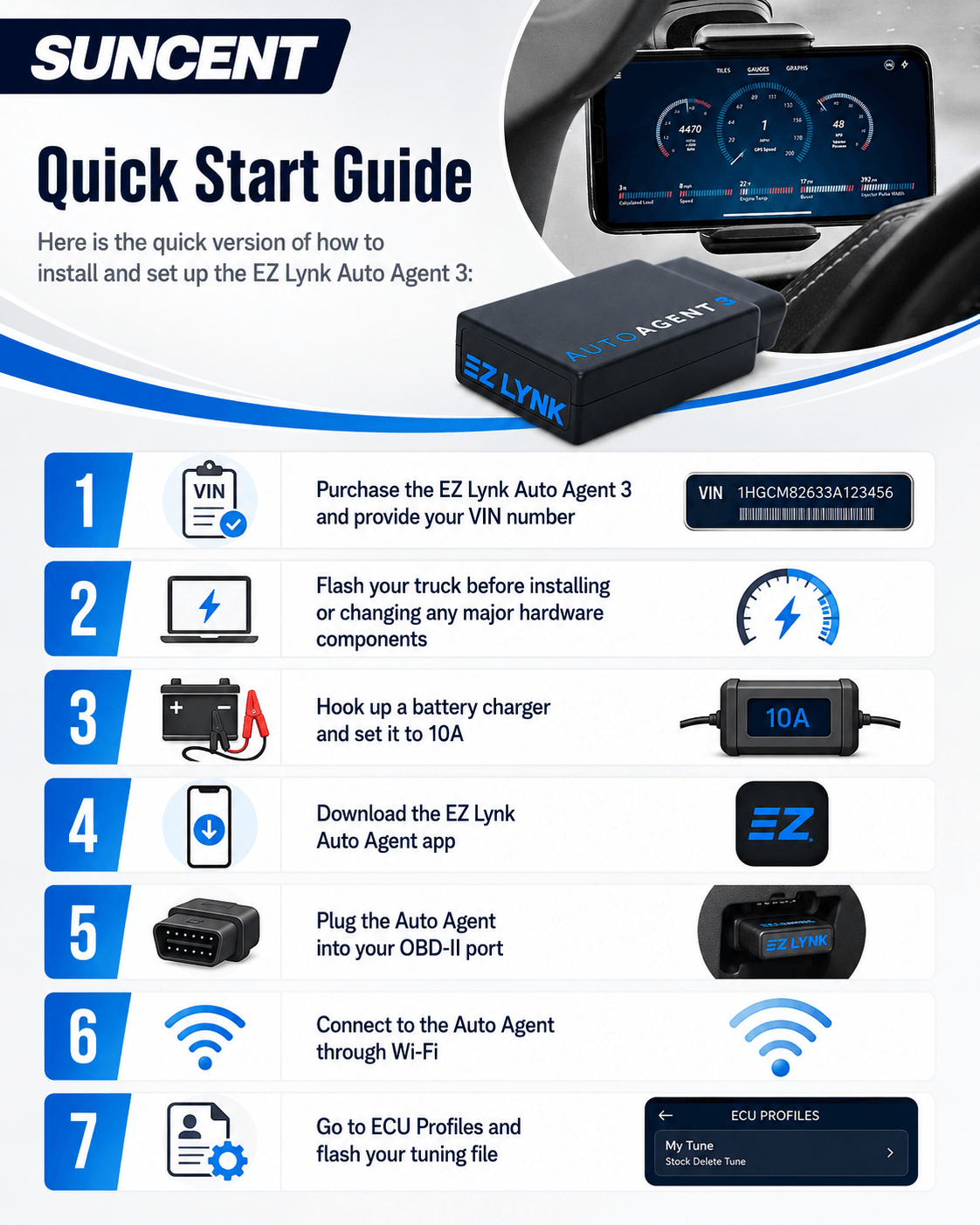
Here is the quick version of how to install and set up the EZ Lynk Auto Agent 3:
- Purchase the EZ Lynk Auto Agent 3, tuning file, and provide your VIN number
- Flash your truck before installing or changing any major hardware components
- Hook up a battery charger and set it to 10A
- Download the EZ Lynk Auto Agent app
- Plug the Auto Agent into your OBD-II port
- Connect to the Auto Agent through Wi-Fi
- Go to ECU Profiles and flash your tuning file
For best results, read the full step-by-step guide below before beginning the installation.
Step 1: Purchase the EZ Lynk Auto Agent 3 and Provide Your VIN Number
When you place your order for the EZ Lynk Auto Agent 3, you will need to provide the VIN number of your truck.

This allows your vehicle to be linked to the device before shipment. Providing your VIN at checkout helps your technician or tuning provider prepare the correct files for your truck and can help speed up the setup process once your device arrives.
Most orders are shipped through expedited service, so sending your VIN when placing the order helps avoid delays and ensures your EZ Lynk device can be prepared as quickly as possible.
Depending on your needs, you may be able to choose between support options such as:
- 4-Week Lynk Support, also known as limited support
- Lifetime Lynk Support, also known as unlimited support
If you only need basic setup support, limited support may be enough. If you expect long-term tuning updates, troubleshooting, file revisions, or technician assistance, Lifetime Lynk Support may be the better option.
Step 2: Flash Your Truck Before Installing Hardware Components
Do not make any major hardware changes until you have confirmed that EZ Lynk Auto Agent 3 can connect to your vehicle and complete the flashing process correctly.
Flashing the vehicle system first helps avoid unnecessary downtime. It also provides your technicians with a clearer starting point if troubleshooting is required.
Step 3: Hook Up a Battery Charger and Set It to 10A
Before you start flashing, connect a battery charger to the truck and set it to 10A.
This step should not be skipped. It does not matter if your truck has brand-new batteries or if the batteries were recently charged to 100%. A charger helps keep voltage stable throughout the flashing process.
Modern ECMs and control modules are highly sensitive to voltage fluctuations. If voltage drops during flashing, you may experience communication errors, incomplete flashes, or other issues that require additional troubleshooting.
Before continuing, confirm that:
- The battery charger is connected properly
- The charger is set to 10A
- Battery terminals are secure
- The truck is parked safely
- Lights, radio, HVAC, and other accessories are turned off
- Your phone or tablet has enough battery life
Stable power gives the EZ Lynk Auto Agent the best chance of completing the flash successfully.
Step 4: Download the EZ Lynk Auto Agent App
Next, download the EZ Lynk Auto Agent app on your smartphone or tablet.
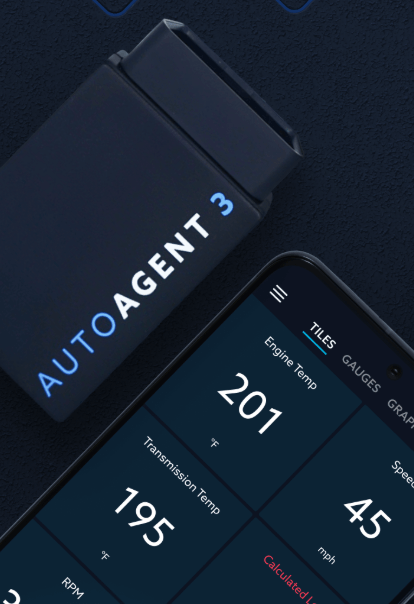
Once the app has been downloaded and installed, open it and create an account. If you already have an EZ Lynk account, simply log in with your existing credentials.
Step 5: Plug the EZ Lynk Auto Agent Into Your OBD-II Port
After your app is installed and your battery charger is connected, plug the EZ Lynk Auto Agent 3 into your truck's OBD-II port.
The OBD-II port is usually located under the dashboard on the driver's side. The exact location may vary depending on the year, make, and model of your truck.
Make sure the device is fully seated in the port. A loose connection can cause communication issues between the truck, the Auto Agent, and the EZ Lynk app.
Note for 2018+ Cummins Trucks
If you are flashing an 18+ Cummins, you may need to connect the required bypass cable at the same time.
The bypass cable only needs to be connected while flashing your tuning files. However, it may remain connected if desired and properly routed. Some users choose to run the cable through the firewall for a cleaner long-term setup.
If you are not comfortable routing wiring or working around the firewall area, it is best to have a qualified technician or professional installer assist you.
Step 6: Connect to the Auto Agent Through Wi-Fi
After inserting the Auto Agent into the OBD-II port, you should see a blue-green indicator light illuminate.
Turn on Wi-Fi settings on your phone or tablet.
Locate and connect to the Auto Agent's Wi-Fi network. Once your mobile device is connected to the Auto Agent network, open the EZ Lynk app. If you successfully connect to the EZ Lynk Wi-Fi network, you should see your vehicle's dashboard in the app.
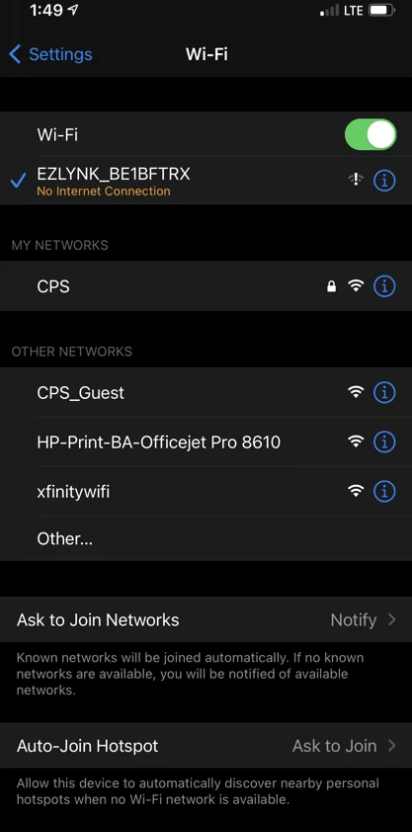
The app should detect the Auto Agent and recognize your vehicle's VIN. Accept the connection when prompted.
Afterward, you may be asked to enter basic vehicle information. Once the information is complete, your tuning files should begin appearing in your EZ Lynk account.
You may also receive push notifications when each file is sent to your account.
This step requires mobile data. If you do not have mobile data, connect to Wi-Fi and reopen the app.
Step 7: Go to ECU Profiles and Flash Your Tuning
Once your Auto Agent is connected and your tuning files are available, the EZ Lynk app will usually default to the main dashboard.
From the dashboard, follow these steps:
- Select the menu button in the top-left corner of the screen
- Choose your vehicle
- Open the available vehicle options
- Select ECU Profiles
- Review the list of available tuning files
- Download the file you want to install
- Select Install
The EZ Lynk app will guide you through the required Key-On / Key-Off procedure during the flashing process. Follow the app instructions carefully.
Do not unplug the Auto Agent, close the app, disconnect from Wi-Fi, turn off your phone, remove the battery charger, or interrupt the vehicle during flashing.
Once the flash is complete, the tune file should show as Installed under the file name.
Ford, GM, and Dodge Flashing Notes
The flashing process may vary depending on your truck.
For Ford and GM vehicles, a separate TCM flash may be required in addition to the ECM flash.
For Dodge / Ram vehicles, TCM tuning is often packaged with engine tuning and may only require a single flash.
Always follow the instructions inside the EZ Lynk app. If you are unsure which file to install or whether your truck requires a separate TCM flash, please consult our technicians before proceeding: support@suncentauto.com
Common EZ Lynk Auto Agent 3 Installation Mistakes to Avoid
Avoiding a few common mistakes can help make the EZ Lynk installation process much smoother.
1. Flashing Without a Battery Charger
Do not rely only on your truck’s batteries. Use a battery charger set to 10A to help maintain stable voltage during the flash.
2. Installing Hardware Before Flashing
Flash your truck before making major hardware changes. This helps reduce downtime if a flashing or communication issue occurs.
3. Connecting to the Wrong Wi-Fi Network
Your phone or tablet needs to connect to the Auto Agent Wi-Fi network during setup. If your device switches back to home Wi-Fi or cellular-assisted Wi-Fi, the app may lose connection.
4. Interrupting the Flash Process
Never unplug the Auto Agent, turn off the ignition, disconnect the charger, or close the app while flashing is in progress.
5. Using the Wrong Tuning File
Only install files intended for your exact vehicle, VIN, engine, transmission, and setup. If you are unsure, ask your technician before installing.
6. Ignoring Key-On / Key-Off Prompts
The EZ Lynk app will guide you through the required ignition cycle. Follow each prompt exactly as shown.
Conclusion
Installing the EZ Lynk Auto Agent 3 is straightforward when you follow the correct steps. Start by providing your VIN when ordering, prepare your truck with a 10A battery charger, download the EZ Lynk Auto Agent app, plug the device into your OBD-II port, connect through Wi-Fi, and flash your tuning file through ECU Profiles.
For the best results, flash your truck before making major hardware changes, use only the correct tuning files for your vehicle, and follow every instruction inside the EZ Lynk app.
Ready to set up your truck with the EZ Lynk Auto Agent 3? Make sure to provide your VIN at checkout so your device can be linked and prepared before shipment.